
PURPOSE: This article explains the various roles available in the Atomic Portal and how to set them up.
TABLE OF CONTENTS |
1. Role Management
Role Management controls the various permissions and accesses available to users in the Atomic Portals (both Sandbox and Production).
There are 5 roles in the Atomic Portal that are customisable according to the needs of your organisation : Super User, Administrator, Customer Service, Reporter, and Operations.
NOTE
It is up to you to define the permissions and privileges that you want to give to each role. Taking the Super User role as an example, you could decide to give access to all available privileges, or you could decide to only give access to Transactions privileges.
There is a default Role Management set-up that is available, i.e. you don't necessarily have to change anything it if the proposed set-up is fit for purpose.
If your organisation is composed of different hierarchy locations (child accounts), you can configure role management and choose the privileges that make up a role per hierarchy location.
However if you do so, please ensure that the hierarchy location at the top (i.e. the parent account) has all the accesses and privileges of the child accounts to avoid conflicts.
Role management is split into 5 sections (Transactions, Settings, Virtual Terminal, Pay By Link, Mandate), each of which having their own permissions and privileges as listed in Section 2. Permissions and privileges.
NOTE
- No new roles can be created beyond the 5 existing ones
- Privileges cannot be changed or amended
NOTE
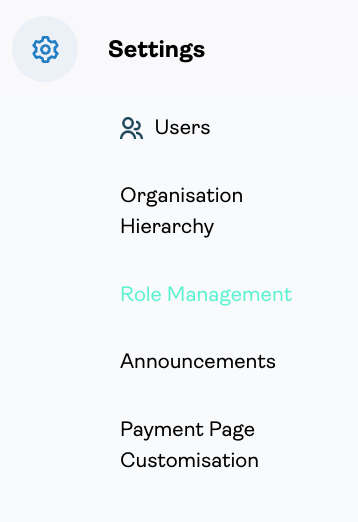
To access Role Management, head to the Atomic Portal and click on the Settings icon in the left-hand side menu.
2. Permissions and privileges
All the permissions and privileges are divided into 5 sections.
2.1. Transactions
NOTE
All the below actions are performed on transactions via the Transactions section of the Atomic Portal. Click on the hyperlink to read more about Transactions, particularly section 2.3 which describes the actions that can be taken against a transaction.

- View: a user is able to view transactions
- Refund: a user can issue refunds
- Cancel: a user is able to cancel a transaction (cancelling an authorisation and cancelling a capture)
- Capture: a user can capture a transaction. NOTE - this action is only possible on transactions that are in an Authorised state. Once the authorisation has been captured, the state of the transaction will change to Captured
2.2. Settings
Users
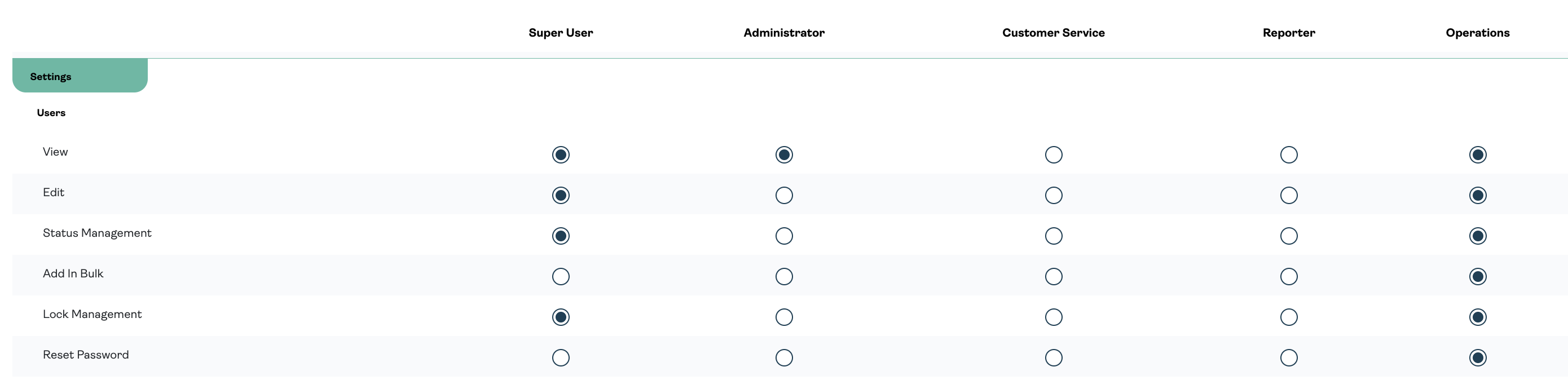
- View: gives the ability to view all Portal users
- Edit: a user can create new Portal accounts and edit existing ones
- Status Management: gives the ability to deactivate and reactivate user's accounts
- Lock Management: gives the ability to disable a user's account and re-enable a locked one
- Reset Password: gives the ability to generate a new password email to be sent to a user
Role Management

- View: gives the ability to view the organisation's role management
- Edit: gives the ability to edit the various roles within a hierarchy location
Payment Page Customisation

- View: allows the user to view the page customisation of the Hosted Payment Page (HPP) and the Pay by Link (PBL) pages
- Edit - PBL: gives the ability to edit and customise the PBL payment page
- Edit - HP: gives the ability to edit and customise the HPP payment page
NOTE
Changes to Pay by Link or HPP roles will only take into effect if the organisation has PBL or HPP enabled.
2.3. Virtual Terminal
NOTE
Head to our Virtual Terminal page for further information on the Virtual Terminal.

- Pay: gives the user the ability to take a card or a token payment using the APEXX Virtual Terminal
- Original Credit: gives the user the ability to credit a card or a token payment using the APEXX Virtual Terminal (standalone credit)
2.4. Pay by Link
NOTE
Head to our Pay By Link page for further information on the PBL product.
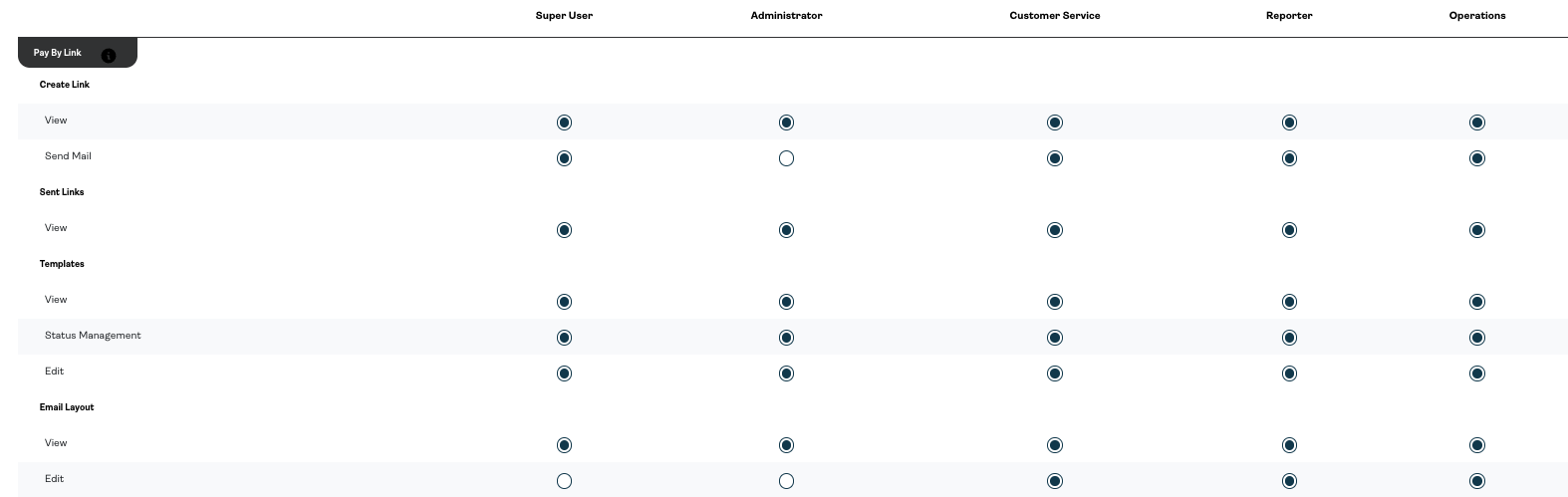
Create link
- View: allows a user to view who the emails were sent out (i.e. view the customers that received the email, NOT view the actual contents of the emails)
- Send Email: allows a user to send customers the email which contains the payment link. NOTE - The individual email can be changed but to change the email template itself, the user will need specific privileges (Email Layout)
Templates
- View : allows the user to view the PBL templates
- Status Management: allows the user to change the status of existing PBL templates (i.e. Live, Draft etc,)
- Edit: gives the ability to edit PBL templates
Email Layout
- View: the user can view the email layout of the PBL email templates (i.e. the emails that are sent to the customer with the payment link)
- Edit: the user can edit and customise the appearance and layout of the email templates (i.e. the emails that are sent to the customer with the payment link)
2.5. Mandate

- View: gives the ability to view a mandate
- Credit: gives the ability to credit a mandate
- Cancel: gives the ability to cancel a mandate
- Capture: gives the ability to capture a mandate
NOTE
This section will be greyed out unless Direct Debit is enabled.
RELATED ARTICLES
- Atomic Portal - Transactions
- Product Suite - Virtual Terminal
- Product Suite - PBL
- Product Suite - Direct Debit